
Schools and universities
Lesson games on the classroom projector.
The same CornyBits that venues use, with an education mode. The teacher runs a quiz or a poll on the projector, learners answer on their own devices, and a school workspace has its safeguards on from the start.
In the classroom
How a lesson game runs.
The teacher runs the game. Learners only need the code on the screen.
Put the game on the projector
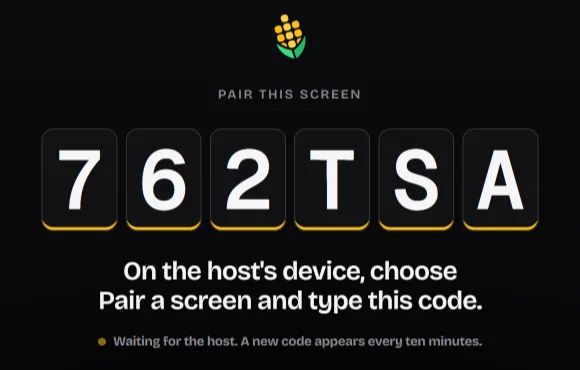
The teacher opens the game on the classroom computer and shows it on the projector, or pairs a screen in the room with a code.
Learners join with the code
Learners open play.cornybits.com on a phone, tablet or school computer and type the code on the screen. There is no app to install, no account and no email address.
Everyone answers at once
On a phone or tablet they tap an answer. On a computer they can use the keyboard: A to D, or 1 to 4.
The teacher runs the pace
From their own device the teacher opens and closes each question, reveals the answer and shows the standings.
Formats
Every format already exists.
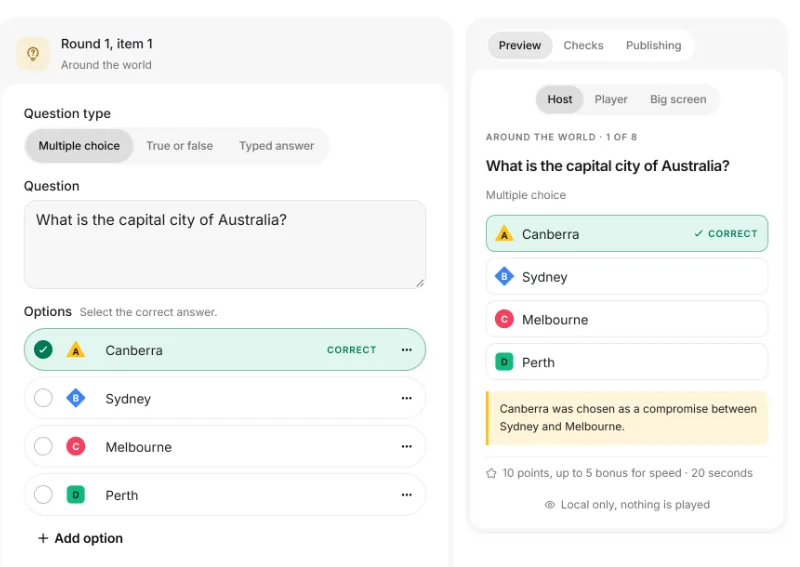
The formats venues play work the same in a lesson. Teachers write their own questions in the pack editor, or import them from a spreadsheet.
Trivia
Multiple choice, true or false, typed answers, closest number and putting things in order. Typed answers that are nearly right wait in a review queue for the teacher.
Polls
Unscored questions for a quick show of hands, with the results on the projector.
Teams with captains
Learners play in teams. The captain answers for the team, and everyone else follows on their own screen.
Answer sheets
A round on one sheet: learners fill in every answer, can change any of them until the round closes, and hand the sheet in.
Safeguarding
On by default in a school workspace.
A school workspace starts with these settings in place. Nobody has to remember to turn them on.
No accounts, marketing or sharing
Learners never get accounts, marketing or EventSync sharing.
First name and initial
The projector and the other learners’ devices show a learner’s first name and initial, never a full name.
The teacher admits each learner
Nobody plays until the teacher lets them in, unless the game uses a class list.
No quotes from the room
Quotes written by players, for a round where the class guesses who in the room said it, are off.
Captions wait for the teacher
Captions from learners under 18 are off until the teacher turns them on, and are then held for the teacher to approve.
No chat
There is no chat. Learners answer, vote and see the results, and nothing else.
No age question, no birth date
Nobody is asked their age. A learner in a class game plays in the age group the teacher set for the class; anyone who joins a school game with its code plays as under 13.
Private reports
A learner can report something to the teacher privately. Other learners never see who sent a report.
Removed at the end of the year
Names and typed words in a school’s games are removed at the end of the academic year: 31 December, unless the school sets another date. Class lists stay until a learner is removed from the class.
Words
Words that fit a school.
In a school or university workspace, the admin and the apps use the words of the place.
| In a venue | In a school | In a university |
|---|---|---|
| Hosts | Teachers | Lecturers |
| Players | Learners | Students |
| Game nights | Lessons | Lectures |
| Outlets | Phases | Departments |
Data and POPIA
The school decides, SyncFac processes for it.
In a school workspace the school is the responsible party. SyncFac (Pty) Ltd, which runs CornyBits, is its operator under a written operator agreement.
What is kept
A preferred name and initial, the age group, and answers and results. A class list adds up to three letters of the surname, an optional admission number, the team, a hashed picture code and the teacher’s reading and extra-time settings, which stay in CornyBits. No email address, birth date or photos, and no profiling or marketing.
Kept in South Africa
School data is stored in South Africa. It leaves the country only when the school links a system hosted elsewhere, such as Google Classroom, which then receives learners’ marks on the school’s instruction.
A written agreement
The operator agreement says what SyncFac may do with the data, how it is protected, and what happens when the school leaves.
Licences
A yearly licence, invoiced in rand.
- SyncFac invoices the school once a year, in rand.
- The school pays by EFT. If it works with purchase orders, send one and we invoice against it.
- We remind the school before the licence period ends.
- Prices are not listed here: ask for a quote for your school.
- Universities: the University plan allows up to 1,000 students in one game.
Questions
What schools ask us.
No. Learners open play.cornybits.com in the browser on a phone, tablet or school computer and type the code from the projector. In a game joined with its code they pick an age group and the name they play under; in a class game they find their name on the class list and tap their picture code. They never get an account, and nothing asks them for an email address.
Yes. The game runs in the browser, and on a computer learners can answer with the keyboard: A to D, or 1 to 4. A whole class joining through the school’s one internet connection is normal and allowed for.
Request a demo. We show you a lesson game, go through safeguarding and data with you, and send a quote. Once the school has a licence, SyncFac sends the invitation that sets up its workspace, and the school invites its own teachers.
At the end of the academic year, names and the words learners typed are removed from the school’s games. The year ends on 31 December unless the school sets another date. Class lists are kept until a teacher removes a learner from the class, Prefect or the school’s learning platform removes them, or the school’s workspace closes.
Through the school. The school is the responsible party, so it receives the request and passes it on to us, and we help it answer. A teacher with permission can also remove a learner’s details from a game at any time.
Read the privacy notice for schoolsNo. It is the same CornyBits that venues use, with an education mode for school and university workspaces: the safeguards on this page are on, and the admin and the apps use school words.
Yes. The University plan allows up to 1,000 students in one game. In a university workspace the apps say lecturers, students, lectures and departments.
Schools and universities
See a lesson game before you decide.
Request a demo. We show you CornyBits in a lesson, go through safeguarding and data with you, and send a quote.